Strategy Mode (Natural Language)
What it is
Strategy Mode lets you describe a trading idea in everyday language, and the AI generates a complete Strateda strategy configuration — including indicator selections, entry and exit conditions, parameter values, and filter logic. Instead of manually building a strategy by selecting indicators and configuring each condition step by step, you describe what you want and the AI translates it into a working configuration that you can review, adjust, and backtest.
This is not a black box. The AI produces a fully transparent strategy configuration using the same indicators and conditions available in the manual strategy builder. You see exactly what was generated and can modify any part of it before running.
Strategy Mode is currently in early release. The AI handles a broad range of strategy descriptions, but complex multi-condition strategies may require manual refinement after generation. Capabilities are being expanded continuously.
Plan requirement: Available on Plus, Pro, and Premium plans. Not available on the Free plan.
How to access it
- Open the AI Assistant panel — click the AI Assistant icon in the platform interface.
- Check the Strategy Mode checkbox at the bottom of the chat panel to switch from Q&A mode to Strategy Mode.
- Type a description of your strategy idea and click Send.
- When generation is complete, you will see a "Strategy Successfully Generated!" confirmation. The strategy panel is automatically populated — click Run to backtest immediately.
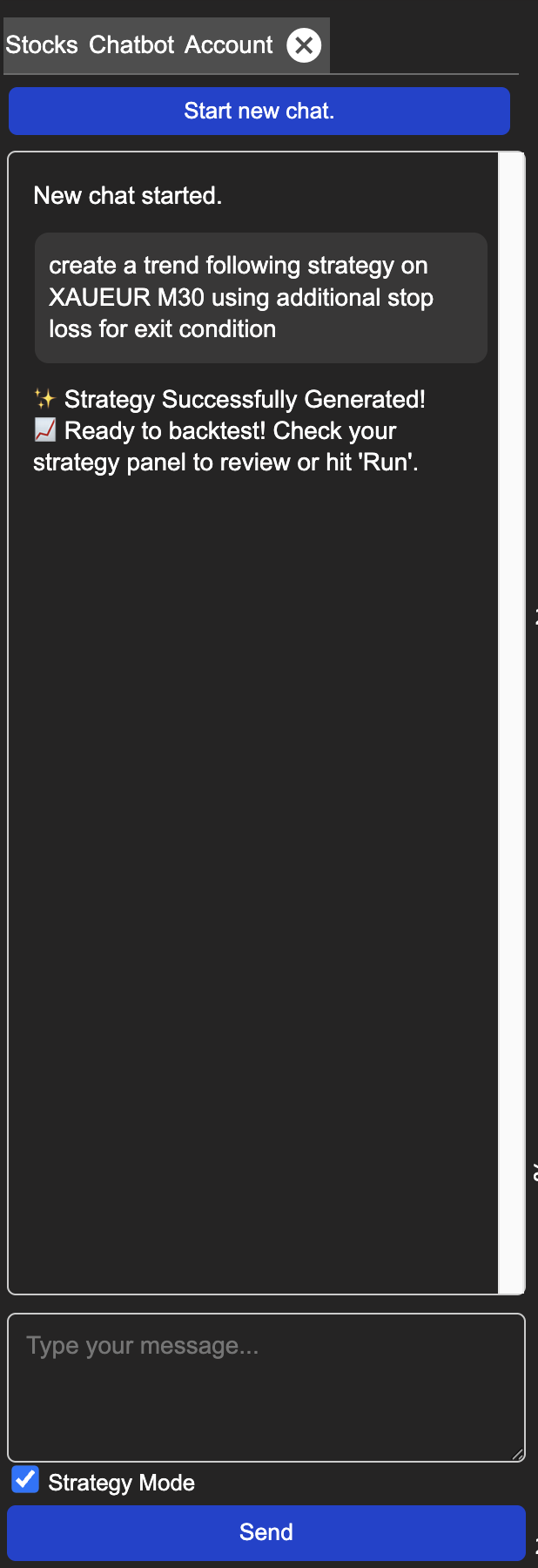
Step 1 — Describe your strategy and receive confirmation
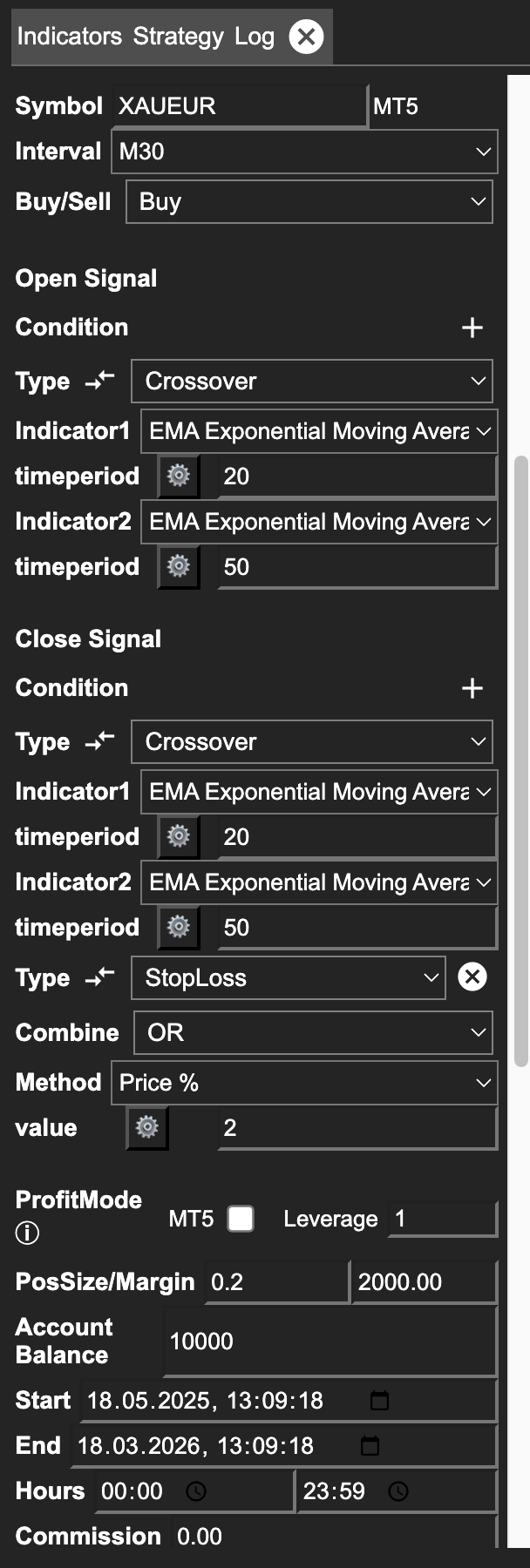
Step 2 — Strategy panel populated and ready to run
The generated strategy loads directly into the Strategy Builder with all indicators, conditions, and parameters pre-configured. You can review and modify any setting before running the backtest.
What you see
After submitting your description, the chat confirms generation with a short success message:
✨ Strategy Successfully Generated! 📋 Ready to backtest! Check your strategy panel to review or hit 'Run'.
The strategy configuration loads silently and directly into the Strategy Builder — it does not appear as text in the chat. Switch to the Strategy panel to review the generated indicators, conditions, and parameter values before running.
How to interpret it
The AI generates a starting point, not a finished product. Treat the output as a first draft:
- Review the logic — Does the generated strategy match your intent? Confirm the indicators and conditions reflect your described approach rather than a generic pattern.
- Check the parameters — The AI selects reasonable defaults, but these are not optimized for any specific instrument or timeframe. Use parameter optimization and backtesting to refine them.
- Verify completeness — Ensure the strategy includes both entry and exit logic. If you described only entries, the AI will generate exit conditions based on common patterns — review whether they match your trading approach.
- Iterate — If the first result is close but not quite right, describe adjustments in a follow-up message ("add a volatility filter" or "use a shorter EMA period") rather than starting from scratch.
Strategy Mode accelerates the process of turning an idea into a testable configuration. The validation workflow remains the same: backtest, optimize, walk-forward test, then consider deployment.
Examples
Simple example — Named strategy concept
You type:
I want to backtest a golden cross strategy with 50 period and 200 period EMA crossover. The stock is MSFT.
The AI generates:
- Instrument: MSFT
- Interval: H1
- Direction: Buy
- Open Condition: EMA(50) Crossover above EMA(200)
- Close Condition: EMA(50) Crossover below EMA(200)
- Balance: $10,000 (default)
- Position Size: 1% (default)
The AI recognises "golden cross" as a named pattern and maps it to the correct indicator combination automatically. You can adjust the periods, switch the instrument, or change the timeframe conversationally after reviewing the result.
Intermediate example — Multi-condition with AND logic
You type:
Create a strategy with ADX and directional indicators. Open signal is when ADX is above 20 with period 40 and at the same time the directional indicators cross each other with the same period. Close when DI lines cross again.
The AI generates:
- Instrument: AAPL (default — change to your target)
- Interval: H1
- Direction: Buy
- Open Condition 1: PLUS_DI(40) Crossover above MINUS_DI(40)
- Open Condition 2 (AND): ADX(40) Limit above 20
- Close Condition: PLUS_DI(40) Crossover below MINUS_DI(40)
The AI automatically applies AND logic between the two open conditions — both must be true simultaneously for an entry. Review the condition logic in the strategy builder before backtesting.
Complex example — Multiple exit conditions with OR logic
You type:
Backtest a AAPL H4 strategy. Open when EMA 20 crosses above EMA 100. Close when either the same EMA crossover reverses, or price moves against the position by 3 ATR with period 20. Test from 2022 to end of 2024.
The AI generates:
- Instrument: AAPL
- Interval: H4
- Direction: Buy
- Date range: 2022-01-01 → 2024-12-31
- Open Condition: EMA(20) Crossover above EMA(100)
- Close Condition 1: ATR StopLoss — 3× ATR(20)
- Close Condition 2 (OR): EMA(20) Crossover below EMA(100)
The AI handles the OR exit logic — the trade closes on whichever condition fires first. This is a more advanced configuration that would require several manual steps in the strategy builder. Verify that the ATR multiplier and period match your intent before running.
Follow-up modification
After generating any strategy, continue the conversation to refine it:
Add RSI(14) below 30 as an additional entry filter with AND logic.
The AI adds the condition to the existing configuration without rebuilding from scratch. You can chain multiple modifications — change the timeframe, swap an indicator, adjust periods, add or remove conditions — in successive messages.
The AI Assistant retains the full conversation history as context. For simple adjustments this is helpful — but for complex strategies, or when switching to a completely different strategy idea, accumulated context from earlier messages can reduce generation precision. If you find the AI is incorporating elements from a previous strategy you no longer want, start a new chat session for a clean slate.
Limitations & Reliability
Strategy Mode accelerates the design step, but it operates within defined boundaries:
- Only built-in indicators and conditions — The AI can only use indicators and condition types available in the Strateda strategy builder. It cannot invent custom indicators, create unsupported condition logic, or generate code.
- Review output before backtesting — Always check that indicator periods are reasonable for your instrument and timeframe. An RSI(14) on M1 candles behaves very differently from RSI(14) on D1 candles.
- No knowledge of your trading context — The AI does not know your account size, risk tolerance, broker commissions, or spread conditions. Position sizing, leverage, and risk parameters use platform defaults and should be adjusted to match your situation.
- Plan condition limits apply — The maximum number of conditions per strategy applies to AI-generated strategies the same as manually built ones. If the AI generates more conditions than your plan allows, ask it to consolidate (e.g., "reduce to two entry conditions").
- Specific prompts produce better results — Include: the instrument, timeframe, indicator names and periods, condition type (crossover or limit), threshold values, and exit method. A prompt like "buy MCD on H4 when EMA 20 crosses EMA 100, exit on reverse crossover or 3× ATR(20) stop, backtest 2022–2024" produces a focused, testable strategy. Vague inputs like "make me a profitable strategy" will produce generic output that requires significant refinement.