Expert Advisor Setup
What it is
Strateda connects to MetaTrader 5 through an Expert Advisor (EA) — a small program that runs inside MT5 and acts as the bridge between Strateda's cloud-based strategy engine and your broker's trading environment. The EA handles two functions depending on your use case: receiving broker-accurate market data for backtesting, and executing trade signals during live trading.
Installing the EA is a one-time setup per MT5 installation. Once configured, it connects automatically whenever MT5 is running.
How to access it
The EA download is available from the MT5 Integration section within the Strateda platform.
Plan requirements:
- Plus — MT5 backtest mode
- Pro — MT5 backtest mode + 2 simultaneous live strategies
- Premium — MT5 backtest mode + 4 simultaneous live strategies
What you see
The setup process involves five steps:
Step 1: Download the EA file
- Log in to Strateda.
- Navigate to the MT5 Integration section.
- Click Download Expert Advisor. This downloads a
.ex5file — the compiled EA.
Step 2: Locate your MT5 data folder
- Open MetaTrader 5.
- Go to File > Open Data Folder. This opens a Windows Explorer window showing your MT5 data directory.
- Navigate to
MQL5/Experts/. This is where MT5 loads Expert Advisors from.
Step 3: Place the EA file
- Copy the downloaded
.ex5file into theMQL5/Experts/folder. - In MT5, right-click the Expert Advisors section in the Navigator panel and select Refresh — or simply restart MT5. The Strateda EA should now appear in the Navigator under Expert Advisors.
Step 4: Enable algorithmic trading in MT5
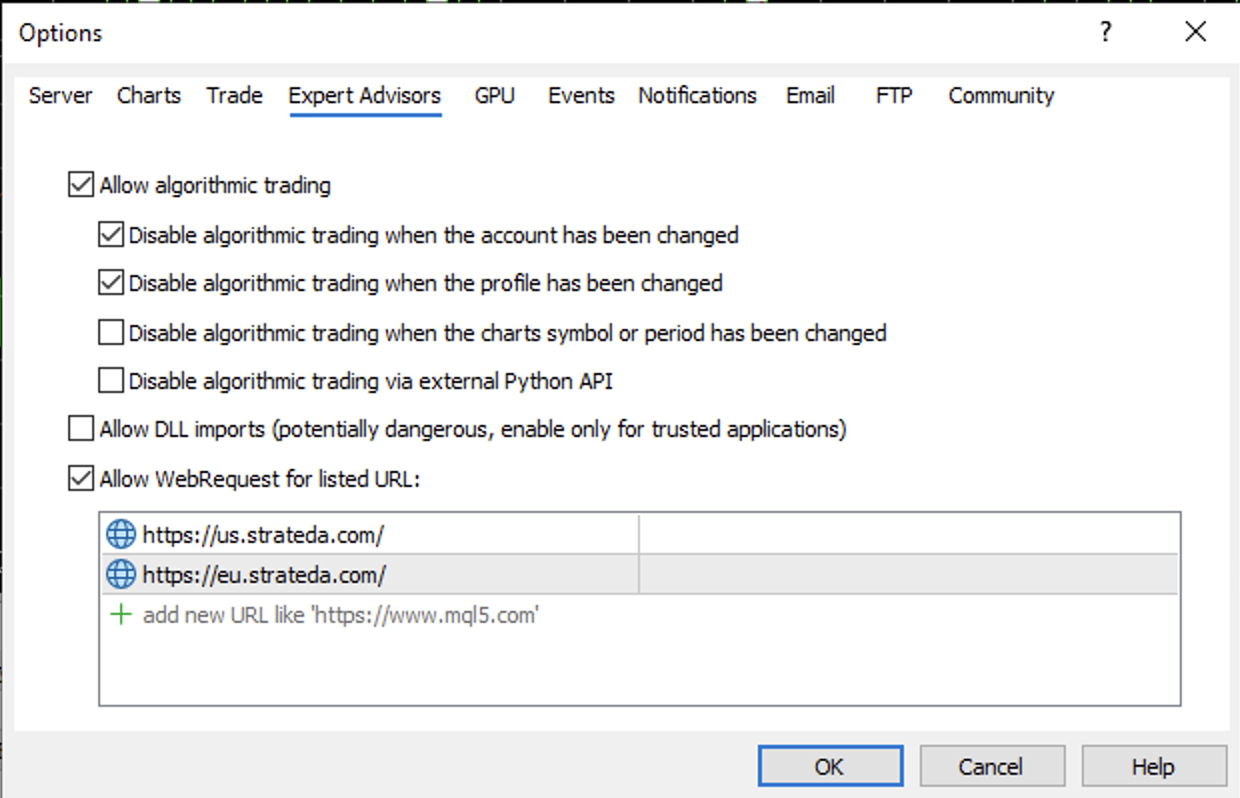
- Go to Tools > Options > Expert Advisors tab.
- Check Allow algorithmic trading.
- Check Allow WebRequest for listed URL and add both Strateda server URLs to the list. This permits the EA to communicate with Strateda's cloud servers.
Add both of these URLs in Tools → Options → Expert Advisors → Allow WebRequest for listed URL:
https://eu.strateda.com
https://us.strateda.com
Add each URL on its own line. Both must be whitelisted so that the EA can connect if you switch regions later.
The URL the EA actually connects to is determined by the Region setting in the EA inputs (see Step 5 below). This also determines which region the EA registers on in Strateda — an EA configured to EU Central appears only when the navbar is set to EU Central, and vice versa. Make sure your EA region setting matches the navbar region you intend to use for managing this strategy. See Server Selection for full details.
- Click OK.
Also confirm that the AutoTrading button in the MT5 toolbar is enabled (it should show a green icon, not red).
Step 5: Attach the EA to a chart and configure
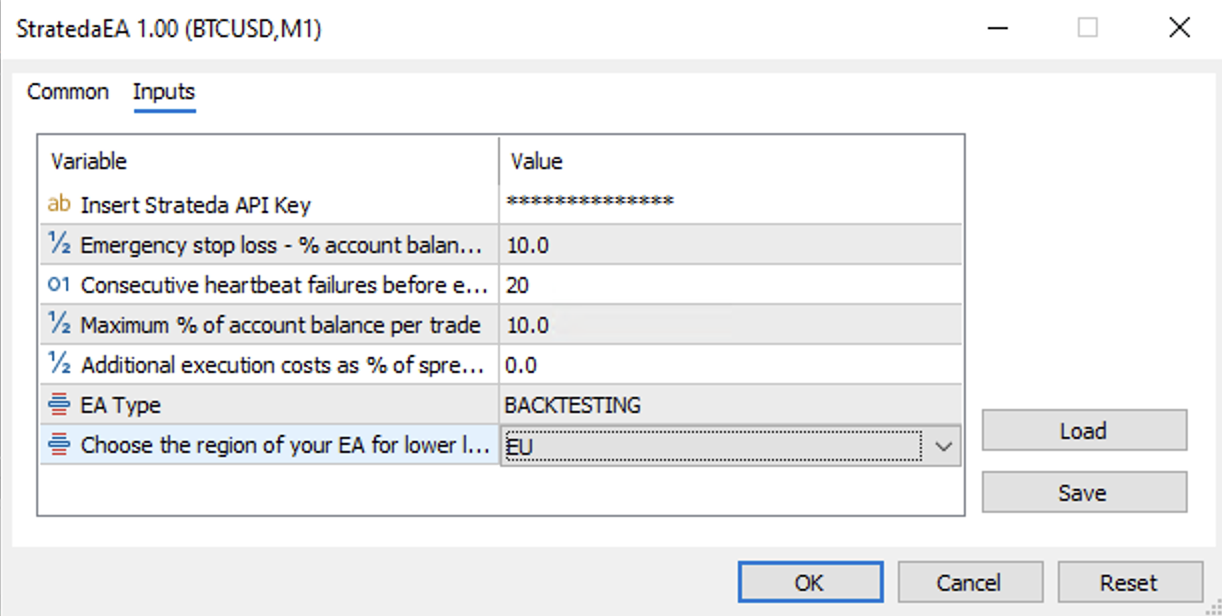
- Open a chart for any instrument (the EA manages its own symbol routing).
- Drag the Strateda EA from the Navigator onto the chart.
- In the EA properties dialog, go to the Inputs tab. You'll see the following configurable parameters:
| Parameter | Default | Description |
|---|---|---|
| API Key | (empty) | Your Strateda account API key, available from your account settings. Required. |
| EA Type | Live | Live for live trading execution. Backtesting for broker-accurate backtest calculations. |
| Region | EU | Server region — US (US East) or EU (EU Central). Choose the region closest to where your MT5 terminal is running. If your MT5 is on a US VPS, choose US. If your MT5 is running locally in Europe or on a European VPS, choose EU. See Server Selection. |
| Emergency Stop Loss % | 10.0 | Maximum loss per trade as a percentage of account balance. If your strategy does not include a stop loss, the EA automatically applies one at this level. Protects against runaway losses. |
| Max Account Risk % | 10.0 | Maximum position size as a percentage of account balance. The EA will reduce any position that exceeds this limit. Prevents oversized trades. |
| Execution Cost Multiplier | 0.0 | Additional execution cost added as a percentage of spread, used during MT5 backtesting. Set to 0 for ideal execution, 20 for realistic conditions, or higher for conservative estimates. Does not affect live trading. |
| Max Heartbeat Failures | 20 | Number of consecutive connection failures before the EA performs an emergency shutdown. The default of 20 is appropriate for most setups. |
- At minimum, enter your API Key, select the correct EA Type and Region, and review the risk parameters.
- Click OK. The EA will connect to the Strateda server and display a confirmation message in the Experts tab at the bottom of MT5.
Risk parameter guidance
The two most important settings for risk management are:
-
Emergency Stop Loss % — This is your safety net. Even if your strategy doesn't define a stop loss (e.g., crossover-only exits), the EA ensures no single trade can lose more than this percentage of your account. The default of 10% is conservative for most strategies. Lower it to 5% or less for tighter risk control; increase only if your strategy's normal trade excursion requires more room.
-
Max Account Risk % — This caps the position size the EA will open, regardless of what the strategy requests. The default of 10% means no single position will use more than 10% of your account balance as margin. This prevents a configuration error or an unexpected signal from creating a dangerously large position.
Both parameters work independently of your strategy settings — they are EA-level safety limits that override strategy-level values.
How to interpret it
Once attached, the EA displays its connection status in the MT5 Experts tab:
- Connected — The EA has established a connection to the Strateda server and is ready.
- Disconnected — Check your internet connection, verify the API key is correct, and confirm AutoTrading is enabled.
- Error messages — The Experts tab will display specific error details. Common issues include incorrect API keys, firewall restrictions blocking outbound connections, or an expired plan.
The EA runs silently in the background. It does not place trades on its own — it only acts on signals from a running Strateda strategy (in live mode) or responds to backtest data requests (in backtesting mode).
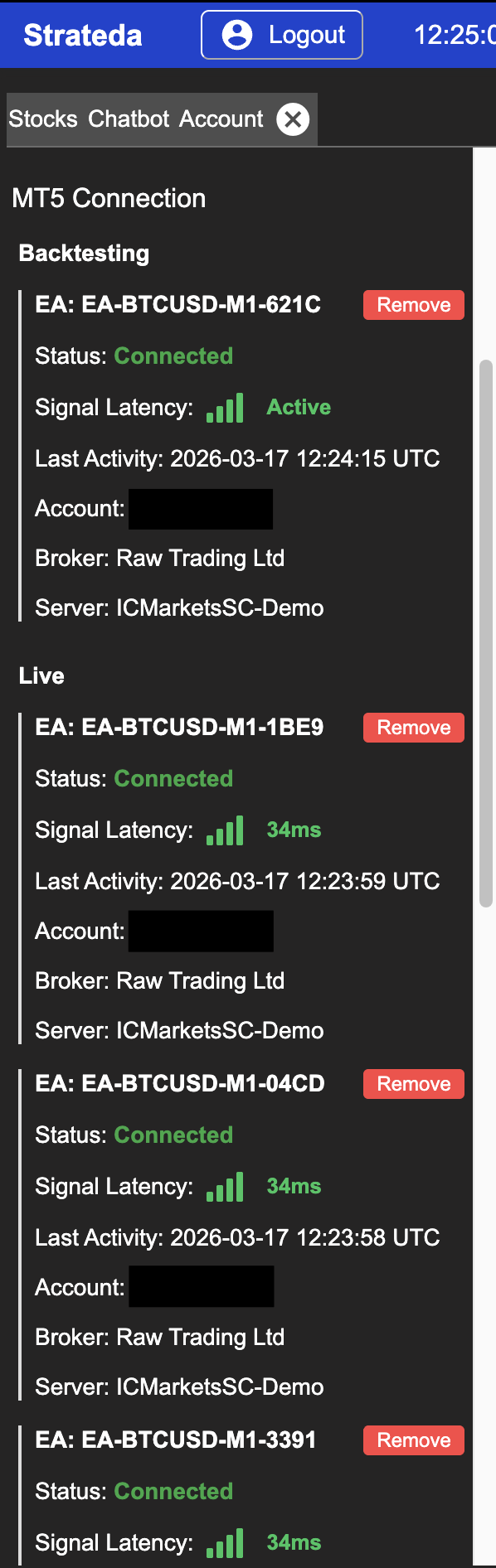
EA connection panel in Strateda
On the Strateda side, the MT5 Integration section shows all currently connected EAs. For each connection you can see:
- Mode — Whether the EA is connected for backtesting or live trading.
- Signal latency — Round-trip latency in milliseconds between Strateda's server and your EA.
- Last activity — Timestamp of the most recent communication with the EA.
- Account number — The MT5 broker account the EA is connected from.
- Broker and server — Your broker name and MT5 server identifier.
- Remove button — Disconnect an EA connection from Strateda. This does not uninstall the EA from MT5 — it only removes the link on the Strateda side. You can reconnect by restarting the EA in MT5.
EA polling and configuration best practices
How the EA communicates with Strateda
The EA does not wait for signals to be pushed from Strateda — it continuously polls the Strateda server for pending jobs. In live mode this polling is frequent, optimised for the lowest possible signal pickup latency. In backtesting mode the polling interval is longer, appropriate for the heavier profit calculation requests the EA processes.
This polling-based model has an important implication for how you configure EAs relative to your strategies.
One EA per live strategy
Each EA instance in MT5 processes events on a single thread — polling, signal pickup, order execution, and confirmations all queue and execute sequentially. When one EA serves multiple live strategies simultaneously, all of those strategies share that single thread. Signals that arrive close together are processed one after the other rather than in parallel, which increases average signal latency per strategy.
For best execution quality, the recommended setup is one EA instance per live strategy — one EA attached to one chart, dedicated to one running strategy. This is not enforced by the platform, but is the configuration that produces the cleanest latency figures in the execution log.
Multiple EAs on the same account
Connecting two EA instances from the same MT5 account to the same Strateda region has the opposite effect — it improves redundancy for a single live strategy. Both EAs poll independently, so whichever polls first picks up a pending signal. This effectively reduces the average signal pickup window and provides a fallback if one EA instance is momentarily busy.
If your plan supports multiple EA connections and low-latency execution is a priority, running two EAs on the same account for a single strategy is a valid configuration.
Multiple EAs on the same MT5 terminal
Attaching multiple EA instances to separate charts within the same MT5 terminal provides better thread isolation than a single shared EA. However, MT5's internal trade context — which serialises order operations — means parallelism is not complete. For the most robust separation between strategies, separate MT5 terminals running on separate VPS instances provide the cleanest isolation.
| Configuration | Isolation | Recommended for |
|---|---|---|
| One EA, multiple strategies | Shared thread — not recommended | Not recommended |
| Multiple EAs, one terminal | Partial isolation | Acceptable for most setups |
| Multiple EAs, separate terminals | Full isolation | Optimal for Pro/Premium multi-strategy setups |
Example
A trader on the Plus plan wants to run broker-accurate backtests on EURUSD:
- Downloads the EA from Strateda and places it in
MQL5/Experts/. - Enables algorithmic trading in MT5 Options.
- Opens a EURUSD chart and attaches the EA.
- Enters their API key and selects EU Central as their server.
- The Experts tab shows Connected. They can now run MT5-powered backtests from Strateda that use their broker's real spread, commission, and margin data.
The entire process takes under five minutes. Once set up, the EA reconnects automatically each time MT5 starts.