Loading Live Trades
What it is
Before you can access any live strategy analytics — P&L distributions, rolling Sharpe, execution quality, or risk analysis — you first need to load the live trades onto the chart. Live trade data does not appear automatically when you open Strateda. You explicitly load it from the Stored Strategy List in the right panel, the same way you load backtest results.
This step matters because live strategies accumulate trades over days, weeks, or months. Loading all historical trades at once may not be useful — you often want to focus on a specific time period to isolate market conditions, compare against a backtest, or investigate a drawdown. The loading system gives you control over exactly which trades appear on the chart and in the analytics.

How to access it
Live strategies appear in the Stored Strategy List in the right panel of the workspace at app.strateda.com. They are identified by a green pause icon next to the strategy name — this indicates the strategy is currently live and running. Stopped or backtest-only strategies show a white play icon instead.
Live strategy data is region-scoped. You must be in the same navbar region the strategy was started in to see it and load its trades. If a strategy you expect to see is missing, check that the navbar region matches. See Server Selection.
Plan requirements:
- Pro — Live trading with up to 2 EA connections
- Premium — Live trading with up to 4 EA connections
What you see
Loading the default view
- Locate your live strategy in the Stored Strategy List — look for the green pause icon.
- Click the arrow icon next to the strategy name.
- The platform loads the last 100 live trades onto the workspace:
- Upper panel — The candle chart displays the trading period with green markers at entry points and red markers at exit points.
- Lower equity panel — A red equity curve appears in the View Panel showing cumulative live performance.
- Strategy Analytics — The analytics tabs become accessible, showing all LIVE_ metric views (P&L distribution, rolling Sharpe, underwater curve, and all other monitoring charts).
The 100-trade default shows the most recent trades regardless of how long the strategy has been running. This provides a quick snapshot of current performance without loading the full trade history.
Loading a custom time range
To analyse a specific period instead of the last 100 trades:
- In the strategy builder section of the right panel, set the start date and end date inputs to your desired time range.
- Click the arrow icon on the live strategy again.
- The platform reloads with only the live trades executed within that date range.
The custom time range overrides the 100-trade default for the current session. Navigating away or reloading the page resets to the default behaviour.
If your live strategy has been running for a long time, use a custom time range to focus on recent market conditions rather than loading all historical trades.
Custom time ranges are useful for:
- Isolating a drawdown period — Set the range around a specific loss period to examine what happened in the analytics views.
- Comparing live vs backtest — Load the same time period for both your live strategy and a backtest to see how execution costs affected real performance.
- Regime analysis — Focus on a period of high volatility or low liquidity to understand how the strategy behaves under specific conditions.
How to interpret it
What appears on the chart
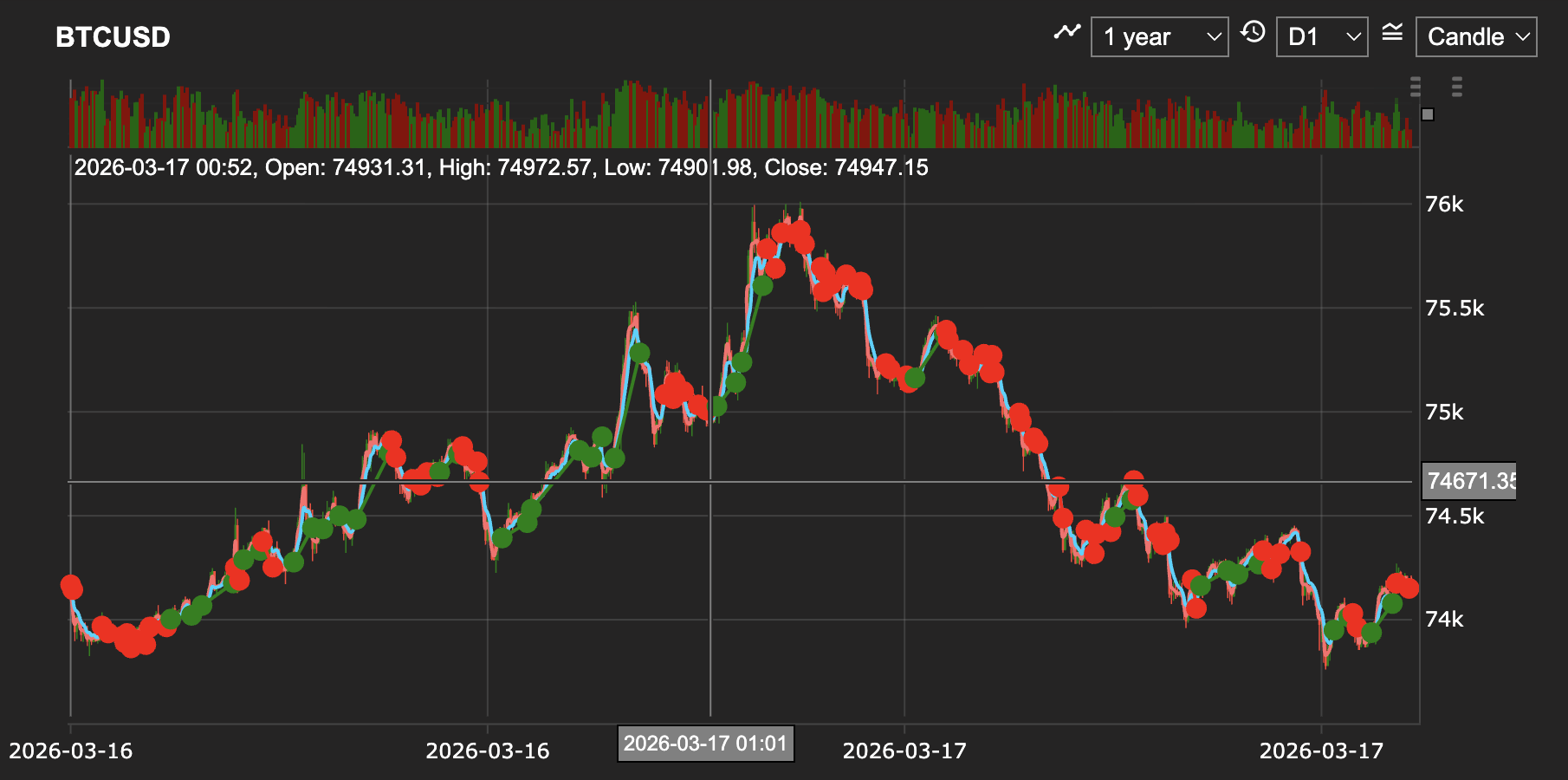
After loading, the workspace shows three layers of information:
- Trade markers — Green triangles at entry points, red triangles at exit points. These appear on the candle chart in the upper panel and correspond exactly to the trades in the analytics views below.
- Red equity curve — The live equity curve appears in red in the View Panel. This is the cumulative P&L across all loaded trades. Use the heartbeat icon to reveal the unrealised P&L path between trade points.
- Analytics access — Clicking the table icon on the live equity curve entry opens the Strategy Analytics popup with all LIVE_ metric tabs. These are the same analytics covered throughout the Backtest Analytics section.
Important notes
- Only EA-executed trades are captured — Trades executed through the connected Strateda Expert Advisor appear in the analytics. Manual trades placed directly in MT5 — even on the same instrument — are not included. The platform tracks only the trades it generated and sent to the EA.
- 100-trade default is count-based, not time-based — The default load shows the 100 most recent trades regardless of whether they span two days or two months. If your strategy trades infrequently, the default view may cover a long calendar period.
- Custom range is session-scoped — Setting a custom date range applies to the current session only. Closing the browser or navigating away resets to the 100-trade default on next load.
Once live trades are loaded, the full Transaction Cost Analysis suite becomes available — slippage distributions, latency analysis, execution precision and temporal patterns. See Execution Quality Analysis for full documentation.
Example
A trader has been running a DEMA/EMA crossover strategy live on EURCHF M30 for three months through their MT5 broker:
- Opens Strateda and locates the strategy in the Stored Strategy List — the green pause icon confirms it is still running.
- Clicks the arrow icon — the last 100 trades load. The candle chart shows trade markers across the past 6 weeks (the strategy averages about 16 trades per week). The red equity curve shows a steady upward trajectory with a visible dip in the most recent week.
- The trader wants to investigate the recent dip. They set the start date to 7 days ago and the end date to today, then click the arrow again.
- The chart reloads with only the 12 trades from the past week. The analytics now show metrics for this isolated period — the P&L distribution reveals two unusually large losing trades, and the slippage distribution shows elevated entry slippage during those trades.
- The trader opens the temporal slippage heatmap and sees that both large-slippage trades occurred during the Asian session low-liquidity window — confirming that the losses were execution-related rather than a signal quality issue.
Without the ability to isolate the time range, these execution patterns would have been diluted across three months of trades and potentially missed.