The Strategy Panel & View System
What it is
The right panel in Strateda is divided into two sections that work together across every workflow: the Stored Strategy List at the top and the View Panel at the bottom. The strategy list manages your saved strategies and live connections. The view panel manages what is currently displayed on the chart — equity curves, trade markers, and access to analytics popups.
Understanding how these two sections interact is important because the same icons behave differently depending on what type of result is loaded. A table icon on a single backtest opens simple metrics. The same icon on an optimization result opens the full analytics dashboard with heatmaps, 3D surfaces, and robustness analysis. Knowing which context you are in prevents confusion and ensures you are reading the right data.
How to access it
The strategy panel and view system are visible in the right panel of the workspace at app.strateda.com. Available on all plans. The stored strategy list populates automatically when you save strategies or connect live EAs. The view panel populates when you load results from the job table or from a stored strategy.
What you see

Stored Strategy List
The stored strategy list shows every strategy you have saved, along with any currently connected live strategies. Each strategy entry displays four action icons:
| Icon | Function |
|---|---|
| Play / Pause indicator | Green pause icon = strategy is currently live and running. White play icon = strategy is stopped or is a backtest-only configuration. This is a status indicator, not a button. |
| Arrow icon | Loads the strategy's trades onto the chart and adds an equity curve to the View Panel. For live strategies, this loads the last 100 trades by default. To load a custom time range, set the start and end time inputs in the strategy builder, then click the arrow again to reload with the new range. |
| Document icon | Opens the Strategy Execution Log — a detailed record of every signal, fill, and execution event. This is covered in the Strategy Execution Log section. |
| Trash icon | Deletes the strategy permanently. This removes the saved configuration — it does not affect any running live strategy or existing job results. |

View Panel
The view panel displays every equity curve currently loaded on the chart. Each curve entry has four action icons:
| Icon | Function |
|---|---|
| Table icon | Opens a metrics popup. The content depends on what was loaded: a single backtest shows backtest performance metrics, a live strategy shows live performance metrics. |
| Heartbeat icon | Brings this strategy into focus across both chart panels simultaneously. In the upper panel, the candle chart loads with this strategy's trade markers for its trading period. In the lower equity panel, the thin continuous unrealised P&L line between trade open and close points becomes active for this curve. When only one curve is loaded, the unrealised equity line is visible by default. When multiple curves are loaded, clicking heartbeat switches focus to this specific curve, centring the chart axes on it. |
| Coloured eye icon | Toggles visibility of this specific curve on the chart. The eye color matches the curve color for easy identification. |
| X icon | Removes this curve from the View Panel and the chart. |

Global View Panel icons
At the bottom of the view panel, a row of global icons applies to all loaded curves simultaneously:
| Icon | Function |
|---|---|
| Save icon | Saves the current view configuration — which curves are loaded, their visibility state, and display settings. |
| Eye icon | Toggles visibility of all curves at once. Useful for quickly clearing or restoring the chart overlay. |
| Table icon | Context-dependent: if multiple single backtests are loaded, opens a comparison metrics table showing all curves side by side. If an optimization result is loaded, opens the optimization analytics popup. If a WFO result is loaded, opens the WFO analytics popup. |
The table icon — both per-curve and global — changes what it opens depending on the type of result loaded. Before interpreting results, check what type of result is active in the view panel. A single backtest table shows simple metrics; the same icon on an optimization or WFO result opens a full analytics dashboard with multiple tabs.
How to interpret it
Loading rules
Different result types follow different loading rules in the view panel:
- Single backtests — Up to 15 can be loaded simultaneously. Each appears as a separate curve with independent visibility toggles. This is useful for comparing strategy variants side by side.
- Optimization result — Loading an optimization result clears all previously loaded curves and replaces them with the best parameter combination's equity curve. The full analytics (heatmaps, surfaces, robustness) are accessible via the table icon.
- WFO result — Loading a WFO result clears all previously loaded curves and replaces them with the combined out-of-sample equity curve across all windows. The full WFO analytics are accessible via the table icon.
- Live strategy — Loading a live strategy via the arrow icon adds it to the view panel alongside any existing curves. It does not clear other loaded results.
What the heartbeat view shows
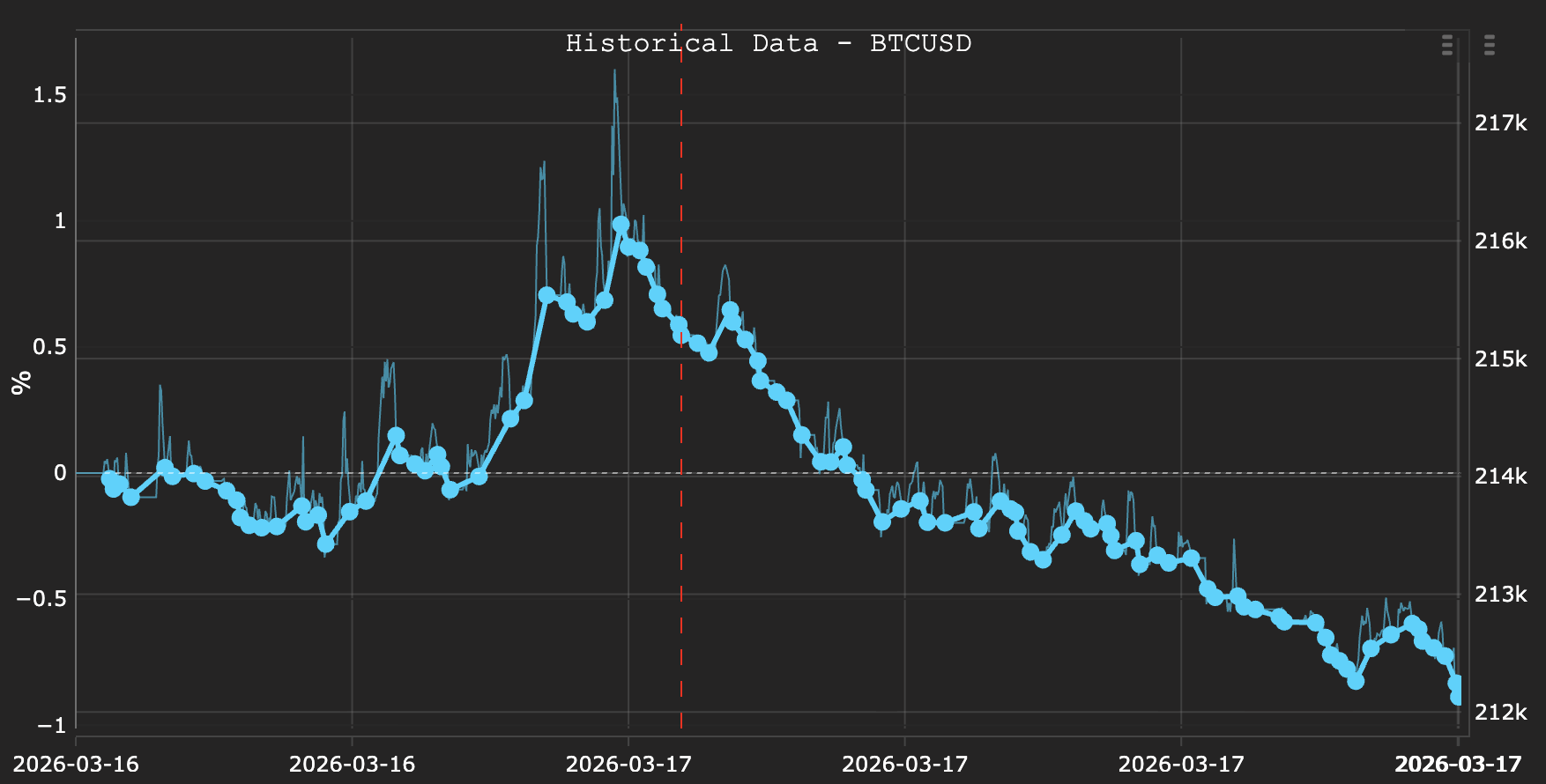
The dots on an equity curve represent trade open and close points — the discrete moments when positions were entered and exited. Between these dots, the equity value jumps from one level to the next with no information about what happened during the hold period.
When you activate the heartbeat icon, a thin continuous line connects these dots showing the unrealised P&L path during each hold period. This reveals how much the position moved in your favour or against you before closing. A trade that closed at +2% but dipped to -5% during the hold period carries significantly more risk than a trade that moved smoothly from 0% to +2%.
This view is valuable for:
- Identifying hidden drawdowns — Trades that close profitably but experienced large adverse excursions during the hold period.
- Evaluating stop-loss placement — If the unrealised path frequently approaches your stop-loss level before reversing, your stops may be too tight.
- Understanding hold-period risk — Trade-level metrics (entry price, exit price, P&L) miss the volatility experienced during the hold. The heartbeat view makes this visible.
Example
A trader has been iterating on an EMA crossover strategy and wants to compare three variants:
- Loads EMA 20/50 backtest from the job table — the equity curve appears in the view panel.
- Loads EMA 20/80 backtest — a second curve appears alongside the first.
- Loads EMA 30/90 backtest — a third curve appears.
All three curves are visible on the chart simultaneously with different colors. The trader clicks the global table icon and sees a comparison metrics table showing Return %, Sharpe, Profit Factor, Max Drawdown, and Win Rate for all three variants side by side.
The EMA 20/80 variant looks best. The trader clicks its heartbeat icon — the chart zooms to focus on this curve and reveals the unrealised P&L paths. Several trades show deep adverse excursions before recovering, suggesting the strategy holds through significant drawdowns. This informs the trader's stop-loss decision before moving to optimization.
The trader then runs an optimization on the EMA 20/80 variant. When the optimization result loads, it clears all three backtest curves and replaces them with the best combination's equity curve. Clicking the table icon now opens the full optimization analytics popup with heatmaps, 3D surface, and robustness analysis — a different view from the comparison table that appeared when multiple backtests were loaded.