Strategy Execution Log
What it is
When a live strategy sends a signal to MT5, a lot happens in milliseconds — the signal is generated on Strateda's cloud server, transmitted to the EA, received by the EA in MetaTrader 5, and executed by the broker. The Strategy Execution Log captures every step of this chain with millisecond precision.
This is the primary tool for diagnosing execution issues, verifying trades fired correctly, and understanding exactly what happened when a trade did or did not execute as expected. Summary metrics like average slippage or fill rate tell you what happened across all trades. The execution log tells you what happened on this specific trade — which is what you need when something goes wrong.
How to access it
Click the document icon next to any strategy entry in the Stored Strategy List in the right panel. The log panel opens in the right panel, replacing the current view. It is available for all connected strategies — both live and stopped — as long as trade events exist within the retention window.
The execution log is region-scoped. To view the log for a strategy running on EU Central, the navbar must be set to EU Central. Switching to US East will not show that strategy's log entries. See Server Selection.
Plan requirements: Pro and Premium (same as live trading).
What you see
Log header
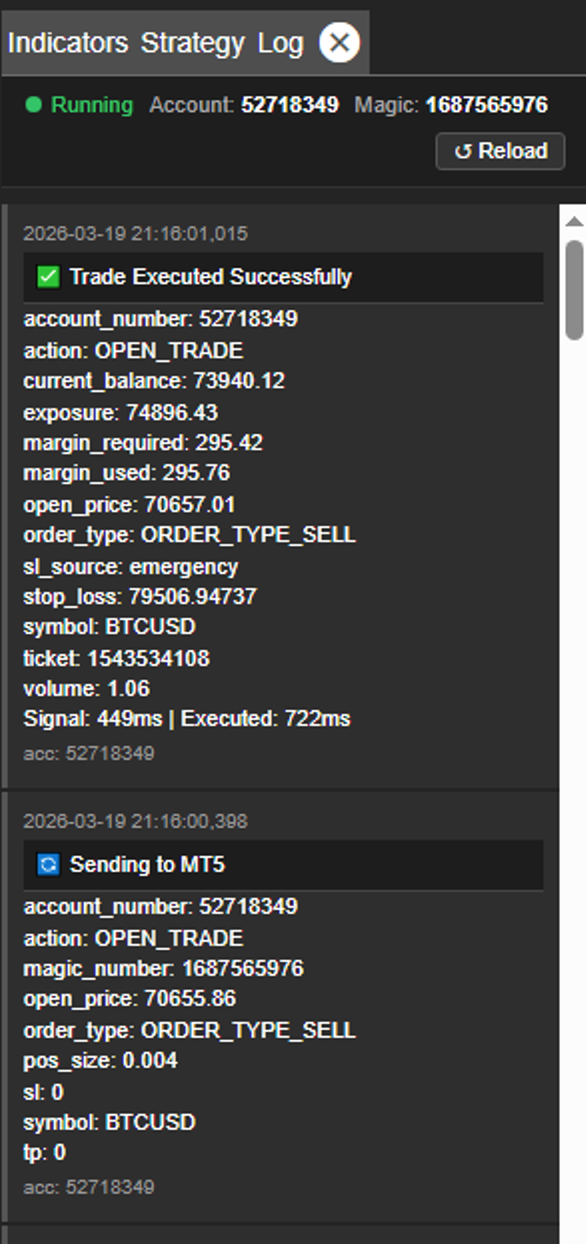
The top of the execution log panel shows the current strategy status at a glance:
| Element | Description |
|---|---|
| ● Running / ● Stopped | Green dot = strategy active, gray = stopped |
| Account: | The MT5 account number this strategy is bound to |
| Magic: | The unique magic number identifying this strategy's trades in MT5 |
| Reload button | Refreshes the log to show the latest entries |
The account number confirms exactly which MT5 account is executing this strategy — useful when running multiple strategies across different accounts or brokers simultaneously.
Log entry structure
Every trade generates two entries in sequence — a send event and an execution confirmation (or failure). Reading them as pairs tells you the full story of each trade.
Entry 1 — "Sending to MT5"
This entry is created the moment Strateda's cloud server generates a trade signal and sends it to the EA:
| Field | Description |
|---|---|
| Timestamp | Precise time the signal was sent (millisecond precision, UTC) |
| Action | OPEN_TRADE or CLOSE_TRADE |
| Magic number | Unique identifier linking this signal to its strategy |
| Open price | The price at the moment the signal was generated |
| Order type | Buy or Sell |
| Position size | Lot size requested |
| Stop loss | Stop loss price level, if configured |
| Take profit | Take profit price level, if configured |
| Symbol | The instrument being traded |
| account_number | The MT5 account number this signal was sent to |
| acc | Short-form account reference shown at the bottom of each entry — confirms the account that processed this event |
Entry 2 — "Trade Executed Successfully" (or failed)
This entry is created when the broker confirms the order fill — or when execution fails:
| Field | Description |
|---|---|
| Timestamp | Precise time the execution was confirmed (millisecond precision, UTC) |
| Action | OPEN_TRADE or CLOSE_TRADE |
| Account balance | Account balance after execution |
| Open/Close price | The actual fill price from the broker |
| Volume | Filled lot size |
| Margin required | Margin needed for this position |
| Margin used | Total margin in use after this trade |
| Exposure | Total notional exposure after this trade |
| Stop loss | Confirmed stop loss level |
| Symbol | Instrument traded |
| Ticket number | Broker-assigned trade ID for reconciliation |
| sl_source | Origin of the stop loss: strategy = stop loss defined in your strategy conditions, emergency = triggered by the emergency stop loss safety setting in the EA inputs |
| tp_source | Origin of the take profit: strategy = take profit defined in your strategy conditions |
| account_number | The MT5 account number that executed this trade |
| acc | Short-form account reference at the bottom of the entry |
| Latency | Displayed as "Signal: Xms | Executed: Xms" |
Understanding signal vs execution latency
The latency line on each execution entry breaks the total delay into two components:
- Signal latency — Time from strategy signal generation on Strateda's cloud server to EA receipt in MT5. This covers network transit between Strateda's infrastructure and your MT5 instance.
- Execution latency — Time from EA receipt to broker order confirmation. This covers the broker's internal processing, order matching, and fill.
Example: Signal: 684ms | Executed: 1005ms means it took 684ms for the signal to reach MT5, then an additional 321ms (1005 - 684) for the broker to execute. The total time from signal generation to fill was 1005ms.
| Latency component | Healthy | Investigate | Action |
|---|---|---|---|
| Signal latency | < 500ms | > 1000ms | Consider switching to a closer server region (US East or EU Central) |
| Execution latency | < 300ms | > 800ms | Broker-side issue — consider trading during higher-liquidity hours, or evaluate broker alternatives |
Cross-reference high execution latency entries in the log with the LIVE Latency Distribution chart in the TCA section — patterns of high latency at specific times of day may indicate liquidity windows to avoid.
Identifying failed trades
Failed trades appear with a red or warning indicator instead of the green "Trade Executed Successfully" badge. The "Sending to MT5" entry will be present, but the execution confirmation will show an error status instead of a successful fill.
Common causes of failed trades:
| Failure | What happened | What to check |
|---|---|---|
| Insufficient margin | Account does not have enough free margin to open the requested position | Reduce position size or close existing positions. Check your margin utilization in the live strategy analytics. |
| Broker rejected order | Instrument unavailable, market closed, or order parameters outside broker limits | Verify trading hours for the instrument. Check that the symbol is active in your MT5 Market Watch. |
| Connection timeout | EA lost connection to Strateda server during signal delivery | Check your internet connection and MT5 status. If running on a VPS, verify the VPS is online (see VPS Setup). |
| Emergency stop loss triggered | The EA's risk management override closed the position | Review the Emergency Stop Loss % and Max Account Risk % settings in the EA configuration. |
| sl_source: emergency appearing repeatedly | The emergency stop loss is firing instead of your strategy's configured stop loss | Review your emergency stop loss threshold in the MT5 EA inputs — it may be tighter than your strategy stop loss. Ensure your strategy stop loss is correctly configured in the close signal conditions. |
The log loads the last 50 entries by default. For strategies with high trade frequency or longer running periods, click the Load More Historical Logs button at the bottom of the log panel to load older entries progressively.
How to interpret it
What to look for in the log
When reviewing the execution log, focus on these patterns:
- Account number matches expected account — Every entry shows the account_number that processed the event. If you are running strategies across multiple accounts or brokers, verify each log entry shows the correct account number for that strategy. A mismatch would indicate a routing issue.
- Consistent signal latency under 500ms — Healthy connection between Strateda's server and your MT5 instance. No action needed.
- Signal latency over 1000ms — The network path between Strateda and your MT5 is slow. Consider switching to the closer server region, or if running MT5 on a local machine, consider moving to a VPS in the same region as your chosen Strateda server.
- Large gap between signal price and executed price — This is slippage. The signal price in the "Sending to MT5" entry represents the market price when the signal was generated. The executed price in the confirmation entry is what the broker actually filled. The difference is your real slippage on that trade. Cross-reference with the Slippage Distribution chart for the broader pattern.
- Missing "Trade Executed Successfully" after "Sending to MT5" — A failed trade. The signal was sent but never confirmed. Scroll down to find the error entry and check the failure reason.
- Emergency stop loss entries — The EA's risk management system intervened. This means either a single trade exceeded the Emergency Stop Loss % or total position size exceeded Max Account Risk %. Review your position sizing configuration and consider whether the thresholds are appropriate for your strategy's normal behaviour.
Reading entries as pairs
Always read the two entries together. The "Sending to MT5" entry tells you what the strategy intended. The execution entry tells you what actually happened. The difference between intent and reality — in price, timing, and volume — is the execution cost of running live.
Example
A trader notices that their EURCHF M30 strategy had an unusually bad day and opens the execution log to investigate:
- Clicks the document icon on the strategy in the Stored Strategy List.
- Scrolls to the trades from the problematic period. The first trade pair shows:
- Sending to MT5:
OPEN_TRADEat 09:47:12.341 UTC, price 0.93842, Buy 0.1 lots - Trade Executed Successfully: at 09:47:13.025 UTC, price 0.93847, Signal: 412ms | Executed: 684ms
- The signal latency (412ms) is normal. Execution latency (272ms) is normal. Slippage is 0.5 price units — within expectations.
- Sending to MT5:
- The second trade pair shows a different story:
- Sending to MT5:
OPEN_TRADEat 14:02:08.117 UTC, price 0.93921, Buy 0.1 lots - Trade Executed Successfully: at 14:02:10.892 UTC, price 0.93938, Signal: 1847ms | Executed: 2775ms
- Signal latency of 1847ms is abnormally high. Execution latency of 928ms is also elevated. Slippage is 1.7 price units — 3× the normal level.
- Sending to MT5:
- The trader checks the timestamp — 14:02 UTC falls during a period of thin liquidity between the London close and a scheduled ECB press conference. The high latency and slippage are consistent with reduced market depth.
- The trader cross-references with the Temporal Slippage Patterns heatmap, which confirms consistently elevated slippage at 14:00–14:30 UTC on this instrument.
The diagnosis is clear: the strategy's execution quality degrades during this liquidity window. The trader adds a trading hours restriction in the strategy builder to avoid the 13:30–14:30 UTC window, improving net execution quality without changing the strategy's core logic.